
Sadržaj
|  Basic Data |
Partners
Customers, suppliers, members of associations or political parties, individuals, banks and so on are all partners of the company, and their data is maintained here.
For the purposes of various automatic processing, every partner is assigned one of the following types:
- Individual — citizens, employees, members of associations and political parties. Personal data and any information that could identify a person is subject to GDPR rules. The GDPR - General Data Protection Act module is intended for keeping the records required by GDPR.
- Business — companies, sole traders, associations, political parties and similar.
- Temporary partner — used in situations such as issuing an invoice to a customer whose name, address and similar data we do not need.
How to...
Entering a new partner
Brix keeps a shared register with basic data on a large number of businesses in the background, so a new partner is usually not entered manually but taken from that register. The procedure is the same in the Partners form and when entering a partner from a partner field on a document, e.g. {Customer} on an invoice.
- First look for the partner by entering part of the OIB or keywords from the name; the order of entry does not matter. Brix searches the company's partners.

- If the partner is not found, entry of a new partner is started with the
 icon — at the bottom of the partner list or next to the partner field on the document.
 - The [ Partner - Add ] dialog is shown with the {Find Entity} field, where the OIB (preferably) or part of the entity's name has to be entered again. Brix now searches the shared register and shows the list of entities it knows; the more data is entered, the shorter the list.
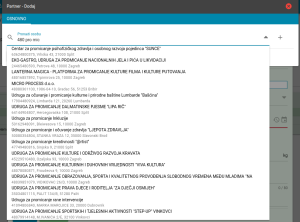
- If Brix shows the matching entity, select it from the list and, if necessary, correct or complete the partner data brought in.
- If Brix does not show the matching business in the list, the icon to the right of the {Find Entity} field opens the form for entering all partner data. First the partner type is marked: {Individual}, {Business} or {Temporary}.
- For a domestic business, enter the {OIB} first. On leaving that field, Brix tries to find the matching business in external sources (e.g. the Court Register) and, if it finds the data, shows it. Correct or complete the data shown.
- If Brix does not find data in external sources, all partner data has to be entered manually: select the {Country}, then enter the remaining data.
- For an individual and a temporary partner the data is always entered manually.
- The data is saved with the SAVE button. This also enters the business into the shared register of businesses.


Rules for entering partners
Since all Brix users share the same basic data of businesses from the shared register, the following rules must be observed.
Other procedures
List
About filters and finding data in lists
- List
The filter that determines which partners are loaded, the list columns and what Search looks up a partner by.
Buttons
 — Import of partners from a list in a CSV file.
 — Download of the list of OIBs for checking the VAT status of partners; the procedure is described in Updating the VAT status and check date of partners.
 — Update of the VAT status of partners from the Tax Administration file; the procedure is described in Updating the VAT status and check date of partners.
- — Entry of a new partner; the procedure is described in the section Entering a new partner.


Data tabs
- ~ BASIC ~
Partner type, identifiers, address, contact details and economic activities. - konta
Accounts the partner is posted to. - email
Email addresses of the partner and their purpose. - ~ DEPARTMENTS ~
Departments, branches and subsidiaries of the partner, with the FINA ID of the business unit for eInvoices to public procurement entities. How a department is selected on a document is described in Partner department. The tab is not shown if the partner is also a company in Brix.
- kontakti
Contact persons at the partner. - iban
Bank accounts of the partner. - uvjeti
Terms of business with the partner. - ~ RECURRING INVOICES ~
Shown if the company uses the Invoices module. The entered data enables automatic periodic invoicing of goods and services. - account
Overview of the partner's debits and payments, by account and with a printout of the account card. - ~ DMS ~
Adding, viewing and updating documents related to the partner, e.g. contracts and copies of documents.- The tab is shown only to companies subscribed to the Document Management System (DMS) module.

Printouts
From the list, using the document icon in the upper right corner of the form:
- Recurring Invoices
Overview of all services entered for recurring invoices. - List of Debtors
List of partners with outstanding debt as of the printout date. For each partner the contact, client manager, total debt and overdue debt are printed, with totals at the end. In the dialog before printing, a {Client manager} can be selected; the printout then covers only the partners assigned to that client manager by the {Client manager} field in the ~ BASIC ~ tab.- A client manager is offered in the dialog only if entered both as an employee and as a Brix user.
- Codes
Short list of partners with an entered code, showing OIB, code and name. Used primarily as an aid when entering the customer for an R1 invoice on the fiscal scale Fiskalna vaga SunMicro Fiscal.
From the form, using the icons in the dialog header:
 Address label on A4

